


There's two I edited for Matt using my useless editing skills.
Results 16,131 to 16,140 of 19205
-
 VR|46
VR|46
-
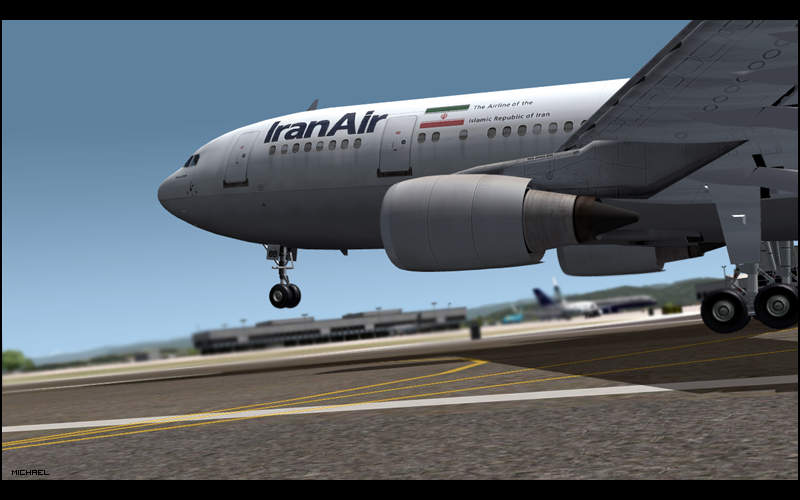
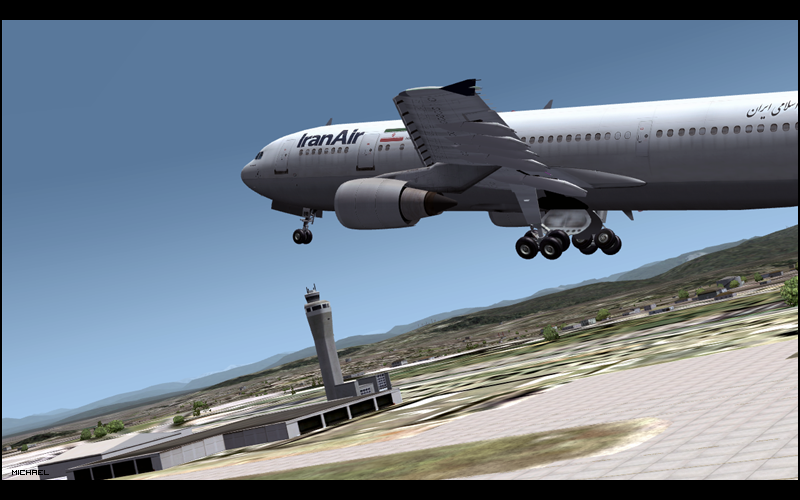
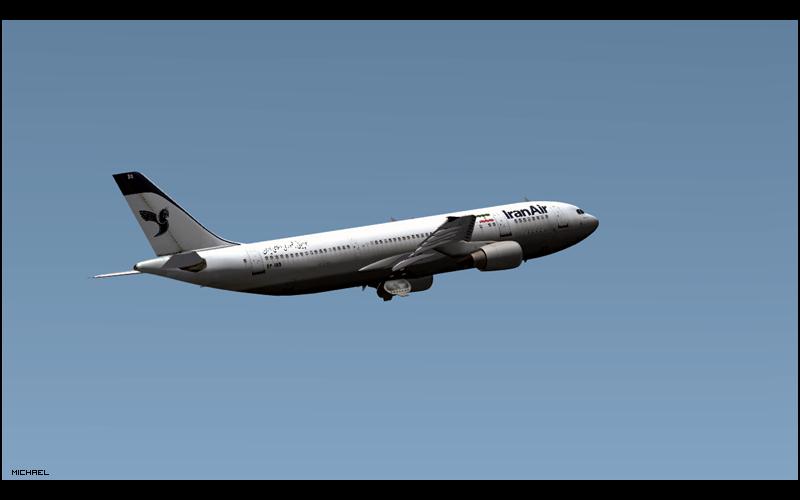
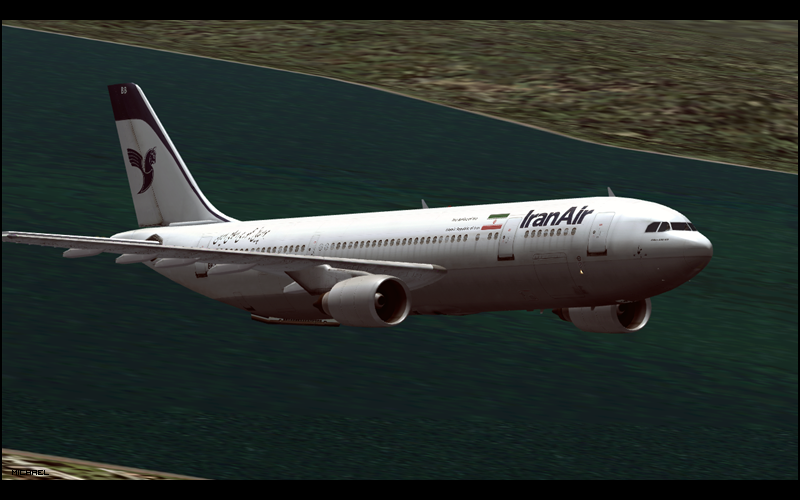
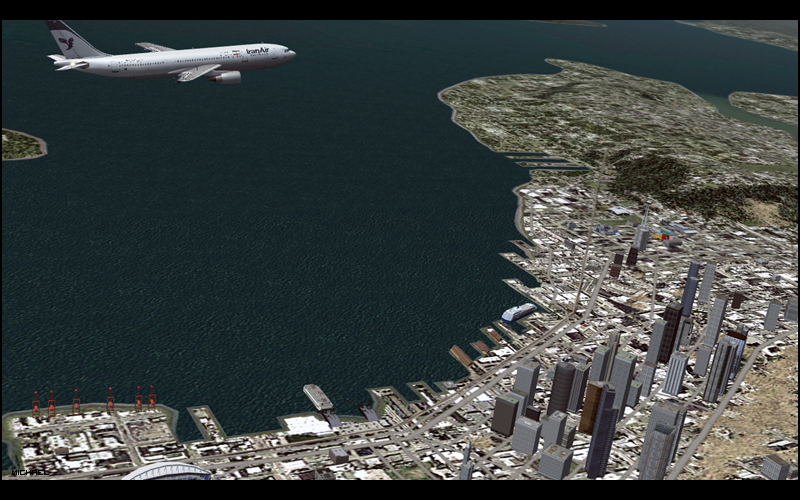
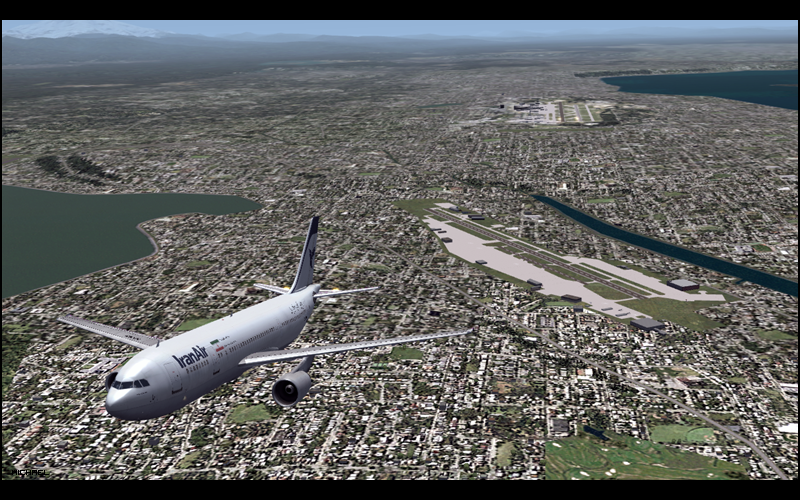
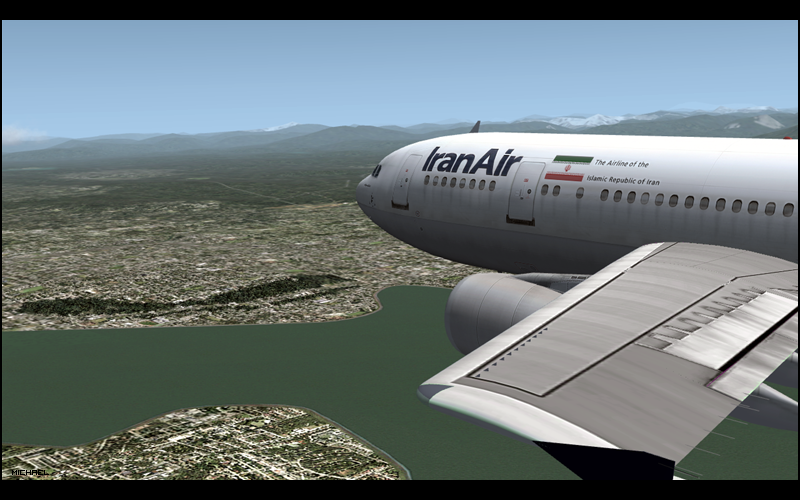
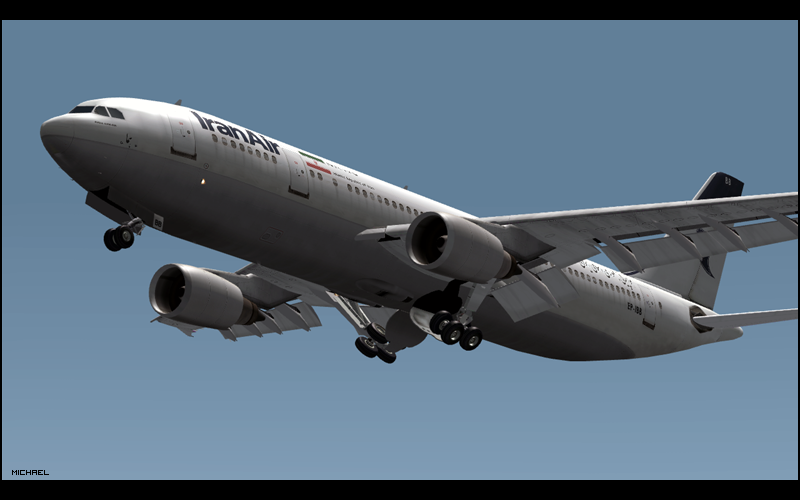
Iran Air A300 KSEA Test Flight
Hey guys, I done a test flight in my new A300, of which I cannot remember the model or anything
 [I have a crap memory]
Anyway, here are 19 screenshots:
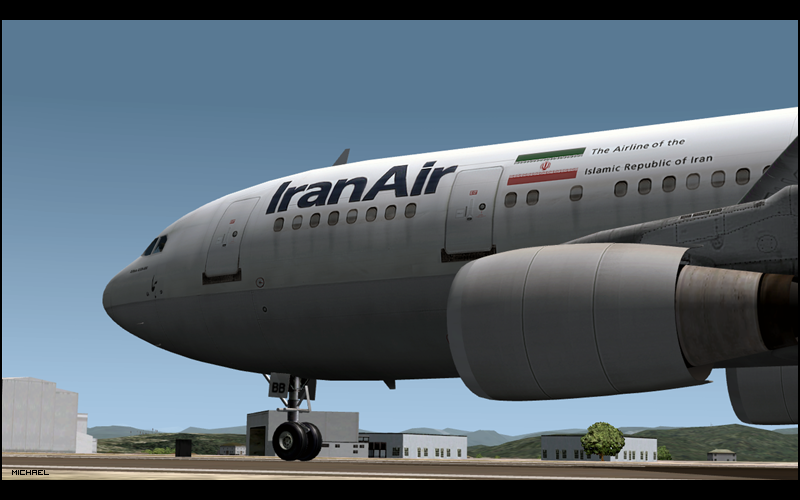
http://i147.photobucket.com/albums/r...scr157copy.png
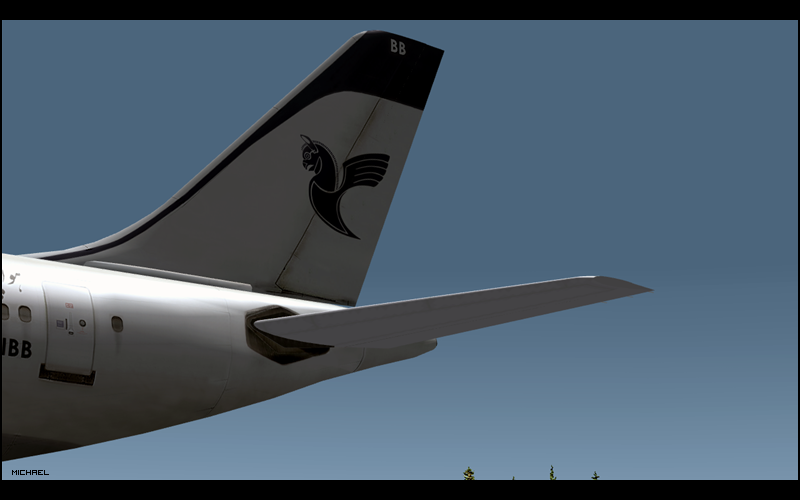
http://i147.photobucket.com/albums/r...scr158copy.png
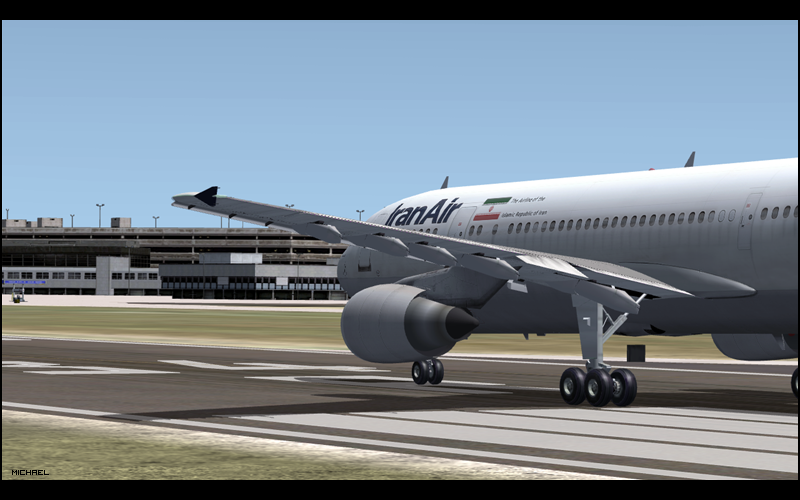
http://i147.photobucket.com/albums/r...scr160copy.png
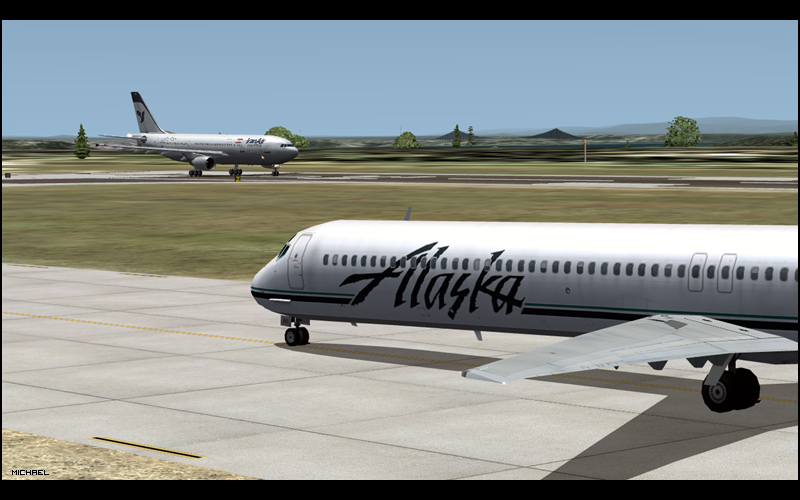
http://i147.photobucket.com/albums/r...scr163copy.png
http://i147.photobucket.com/albums/r...scr166copy.png
http://i147.photobucket.com/albums/r...scr167copy.png
http://i147.photobucket.com/albums/r...scr168copy.png
http://i147.photobucket.com/albums/r...scr170copy.png
http://i147.photobucket.com/albums/r...scr171copy.png
http://i147.photobucket.com/albums/r...scr172copy.png
http://i147.photobucket.com/albums/r...scr173copy.png
http://i147.photobucket.com/albums/r...scr174copy.png
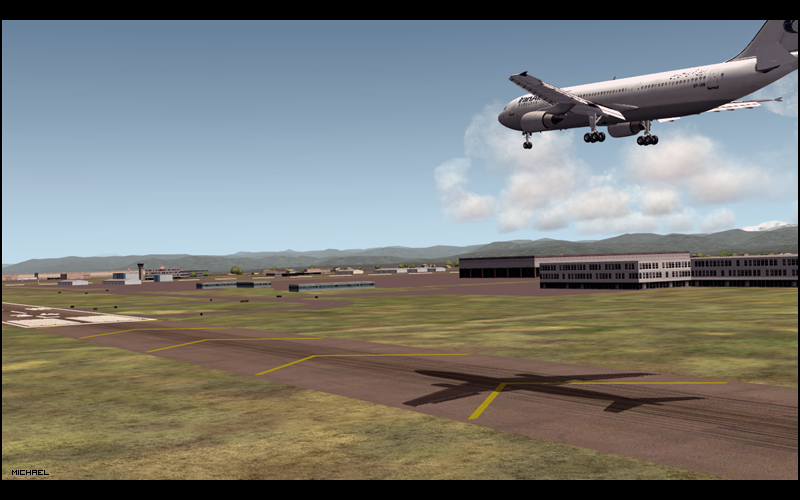
http://i147.photobucket.com/albums/r...scr176copy.png
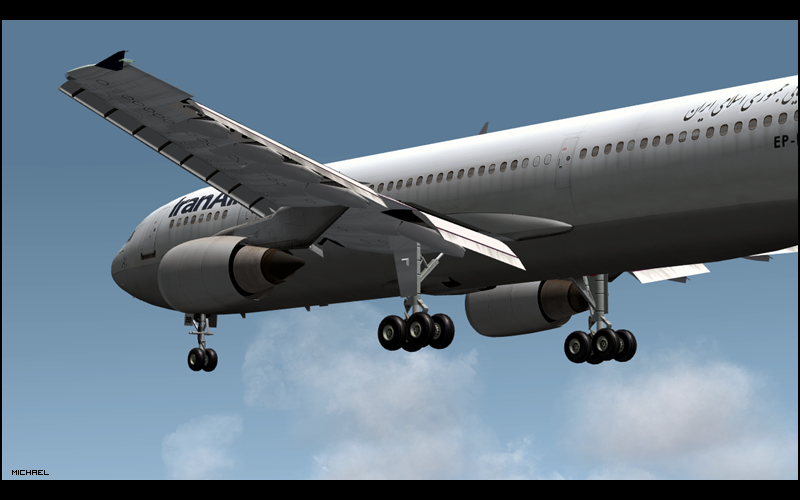
http://i147.photobucket.com/albums/r...scr177copy.png
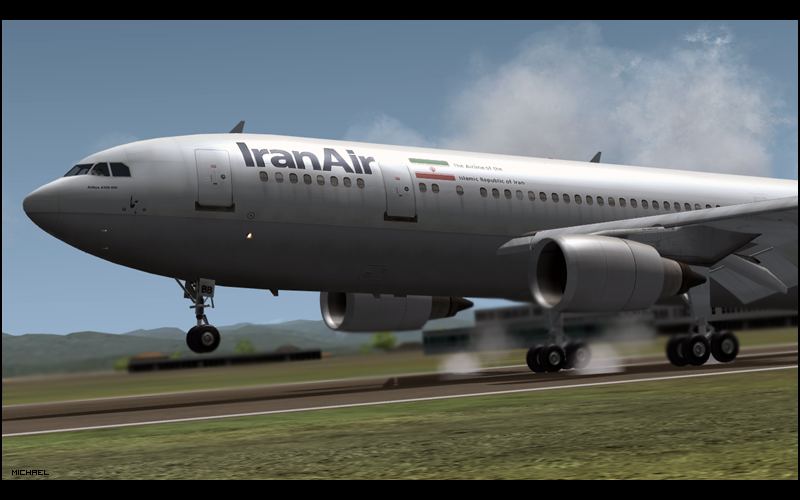
http://i147.photobucket.com/albums/r...scr178copy.png
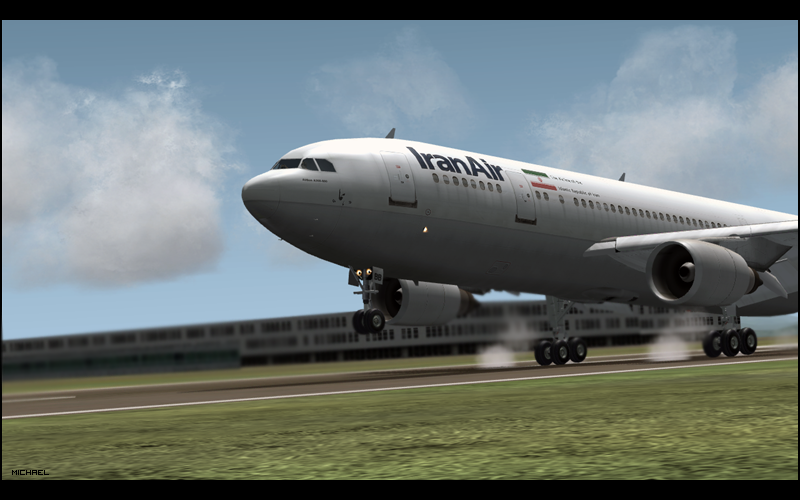
http://i147.photobucket.com/albums/r...scr179copy.png
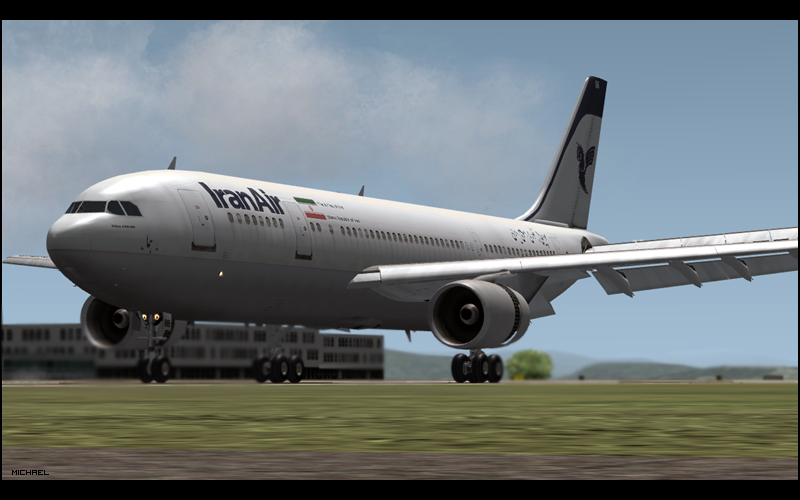
http://i147.photobucket.com/albums/r...scr180copy.png
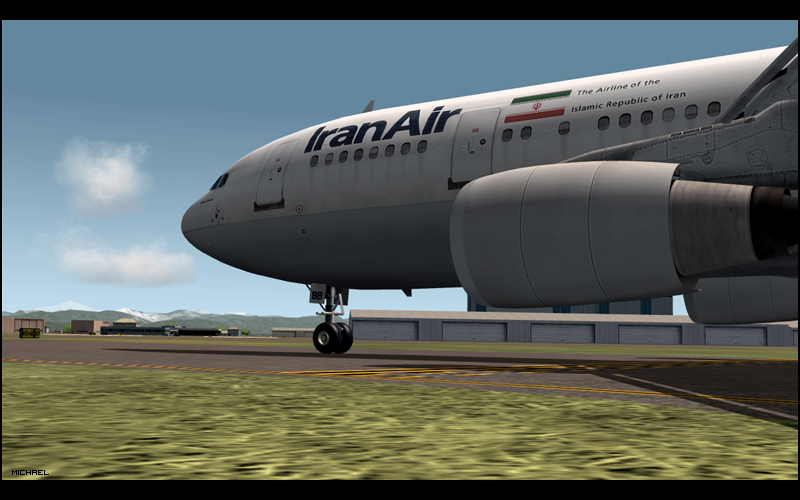
http://i147.photobucket.com/albums/r...scr181copy.png
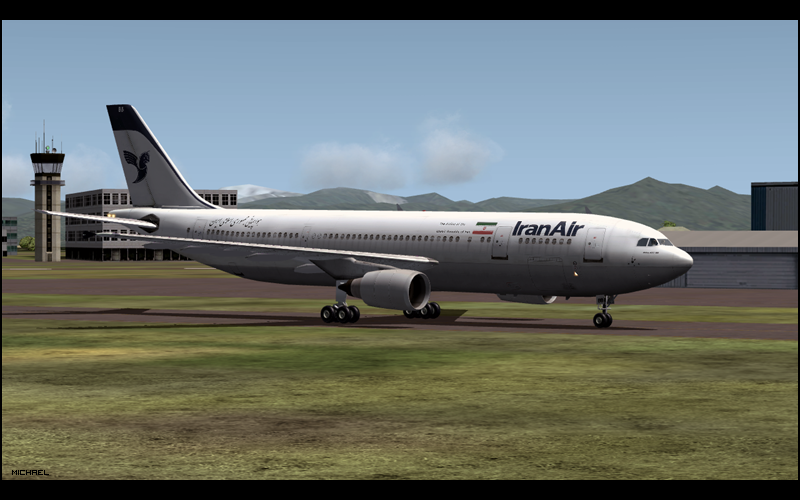
http://i147.photobucket.com/albums/r...scr182copy.png
Thanks all
drink up this bottle of yeah
and P A I N T your body on me
-
27-07-2008, 03:49 PM #16133

They are very sexy!

Previous Habbox Roles
Co-Owner of Habbox | General Manager | Assistant General Manager (Staff) | Forum Manager | Super Moderator | Forum Moderator
-
Wow those graphics are stunning.
amazing shots!
-
Awesome shots mike. Weird how the smoke is before your tires though.

-
oye, LOL. Owell!!
My shots are getting as good as yours mr tucker
drink up this bottle of yeah
and P A I N T your body on me
-
Airbus Panel/MCDU download link&tutorial
Afternoon :]
MattG just asked on MSN for the Airbus Panel I have (PSS) merged with any model. I thought I may as well post the link here for you all to have and I'll also include a basic guide on how to use the Airbus MCDU. So if you are wanting a Airbus FMC download the link below
http://rapidshare.com/files/132865943/panel.zip.html
And for anyone who doesn't know how to setup the MCDU heres a very, very basic guide:
(I must add, that to get the panel working (gauges etc) once loaded in FS, press the '2' key on the NUM PAD )
)
For this example I will be doing a flight from HEATHROW (EGLL) - MANCHESTER (EGCC) using the route: EGLL DCT WOBUN DCT OLNEY T420 TNT DCT EGCC
- Open the MCDU (SHIFT + 3)
- Using the keypad, enter in your departure and arrival ICAO codes. E.G EGLL/EGCC
- HIT 'ALIGN IRS'
- This is optional, but you can input other details such as your 'FLIGHT NUMBER' or your 'ALTERNATE ROUTE'
- Hit 'F-PLAN'
- Click the top left button which will be next to EGLL
- Again, hit the top left button to select the 'DEPARTURE' tab
- Select the runway in use (in this case we will be using 27L)
- And select your assigned SID (we will be using WOBU2G)
- Press 'INSERT'
- Now, this is where we will need to have our route (placed at the top of this tutorial)
- Hit the 'UP ARROW' key a few times to get to the waypoint shown as 'WOBUN'.
- You will be able to see our next waypoint in our flight plan is OLNEY so we will need to insert that:
- Type in 'OLNEY' and click the button directly under WOBUN. The waypoint OLNEY will now be inserted.
- Now, our next plan along the route is actually a AIRWAY so we will need to insert this in a different way.
- Hit 'OLNEY' and you will see we are presented with alot of options
- In the VIA/GO TO option, you will need to enter the AIRWAY and the next waypoint following that. In this case, it will be: T420/TNT
- Once that is entered hit INSERT
- Again, hit the UP ARROW. Now, we are at the end of our flightplan, we will need to do a few final things. Firstly, you will need to delete F-PLAN DISCONTINUITY by hitting the CLR button and hitting the button next to the F-PLAN DISCON... message.
- Now we would need to select our STAR. I would advise doing this just before decent incase the arrival runway does change. But to do so, select the EGCC button at the bottom
- Hit the top right button for ARRIVAL
- Select the arrival runway
- Select the STAR
- Hit INSERT
- Now, nearly finished Hit the INIT button and click NEXT PAGE.
- For the top right entry, enter you aircrafts ZFW.
- And following that, for the 2nd option on the right, enter your BLOCK which I just put as 45.0
- Final stage: Hit the PERF page and simply right click the three V1 buttons etc.
And that is it Hopefully that isnt too brief and I hope it is understandable. Any questions please feel free to ask and I'll be happy to answer.
Thanks
-
Haha. Mine arn't good, the angles I have suck. Hopefully now I got Walk&Follow I should be able to get some decent ones
-
27-07-2008, 05:16 PM #16139
Thanks Tucker, printed this out and also asking further questions on msn.
Previous Habbox Roles
Co-Owner of Habbox | General Manager | Assistant General Manager (Staff) | Forum Manager | Super Moderator | Forum Moderator
-
Not a problem at all. I forgot to mention and Matt reminded me. To set the cruise alt, just go to PERF > and type it in on the top left


 Reply With Quote





 Posting Permissions
- You may not post new threads
- You may not post replies
- You may not post attachments
- You may not edit your posts